Creating and testing a WHOIS API request with Postman
Introduction
An application programming interface (API) allows software components to communicate. Developers test APIs to verify they operate reliably and securely. This guide details one specific use case: using the Postman platform to test the WHOIS API with the domain facebook.com to retrieve its registration details.
Access the Postman API platform
An account is required to access Postman, an online platform for developing and testing APIs. Navigate to the Postman website, and click on the Sign Up for Free button. Create an account using an email address, Google sign-in, or single sign-on.
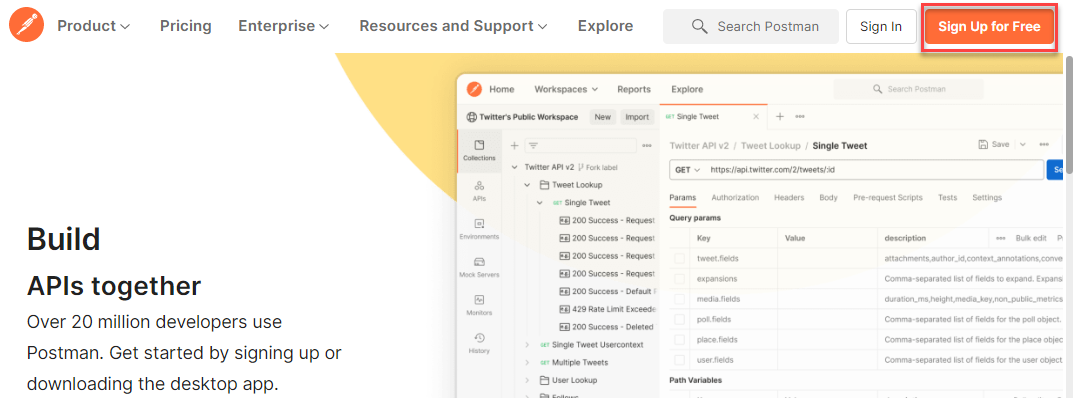
Postman can be accessed by installing the desktop agent for Mac, Windows, or Linux or via a modern web browser. This document will cover the process of using Postman in the web browser. However, the process of API testing showcased is identical to that of using the desktop agent.
Acquire the WHOIS API key
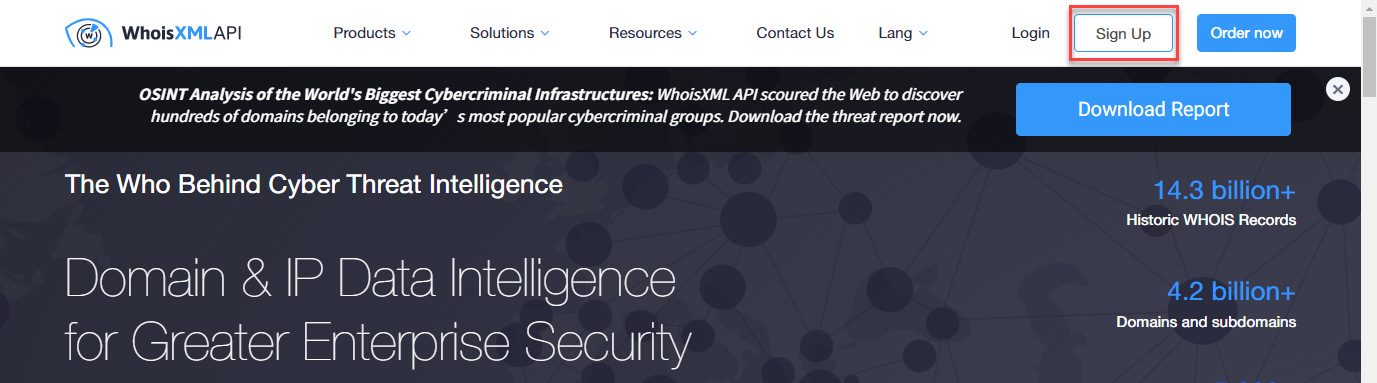
An account is required to generate and access a unique WhoisXMLAPI key. Navigate to the WhoisXMLAPI website, and click on the Sign Up button. Create an account by using an email address.
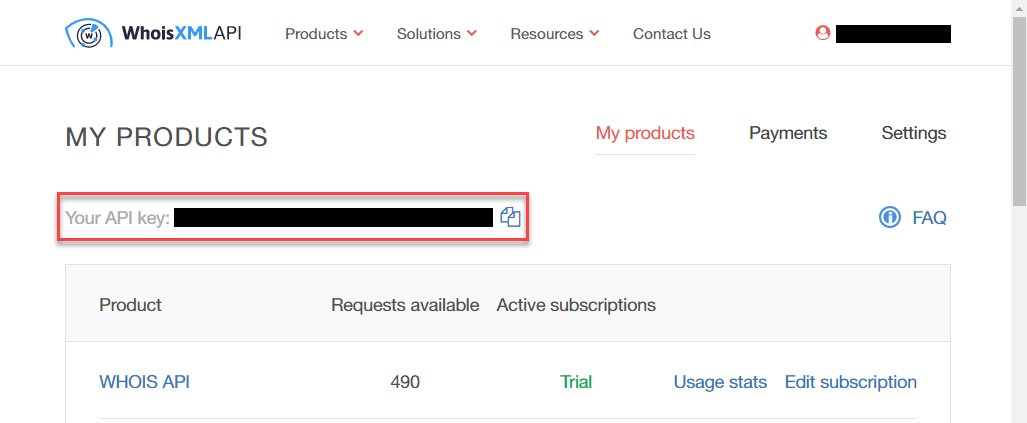
After creating an account, navigate to the Account button in the top right corner and select My Products. You will be directed to the My Products page with a unique API key. Keep the API key accessible for later steps.
Create a workspace in Postman
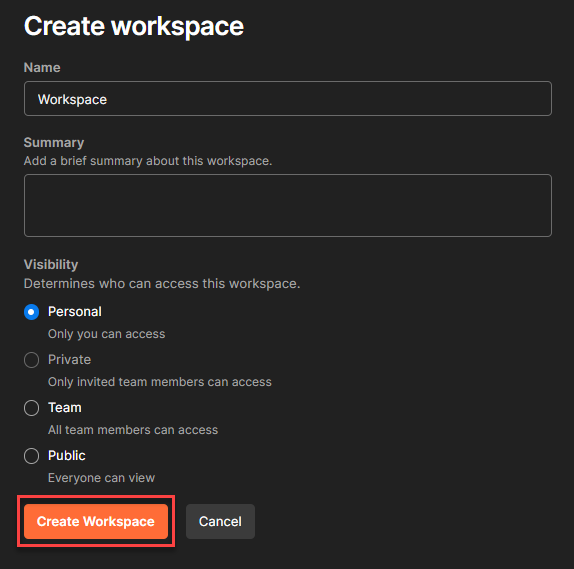
After logging into Postman in a web browser, navigate to the header > Workspaces > Create Workspace.
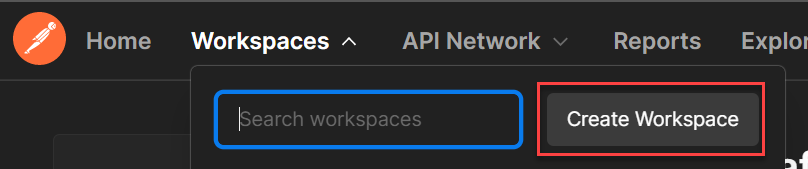
Enter the requested information and permissions settings, then click the Create Workspace button. Navigate to the header > Workspaces, and select the recently created workspace.
Test the API
-
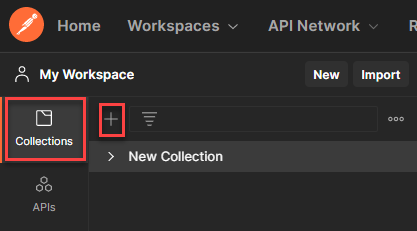
In the Collections tab on the left side of the page, click + to create a new collection. Edit the name, description, and other settings as desired.
-
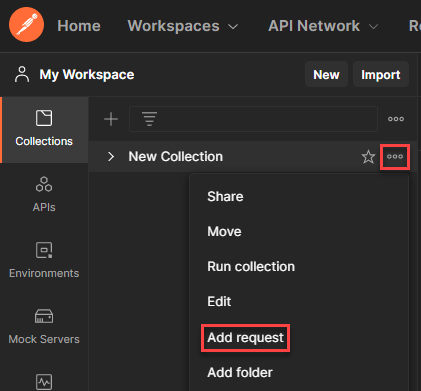
Hover your cursor over New Collection, then click on the three-dot button, followed by Add request. Name the request as desired.
-
Navigate to the recently created request and enter the following API endpoint in the Enter request URL field box:
texthttps://www.whoisxmlapi.com/whoisserver/WhoisService?apiKey=API_KEY&domainName=google.com
-
Ensure the dropdown box left of the Enter request URL field box is set to
GET. TheGETmethod of API testing retrieves information from a given server using a given URL, without affecting the data. The WHOIS API also supports thePOSTmethod of requests, which sends data to a server to create or update a resource. -
The
apiKeyanddomainNameparameters are required. Under Query Params of the Params tab, enter the previously acquired WHOISXML API key in the value field of theapiKeykey. The vaule of thedomainNamekey should be the desired testing domain. In this case, the domainfacebook.comis used.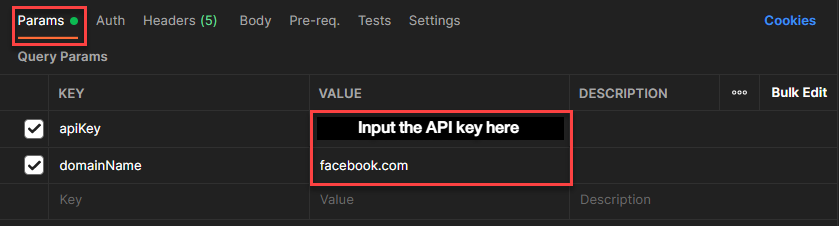
-
Optional input parameters can also be entered. Let’s say the desired output response format is JSON. You can do so by adding the
outputFormatkey with the value set toJSON. Click here for a list of WHOIS API’s other optional input parameters for making API requests.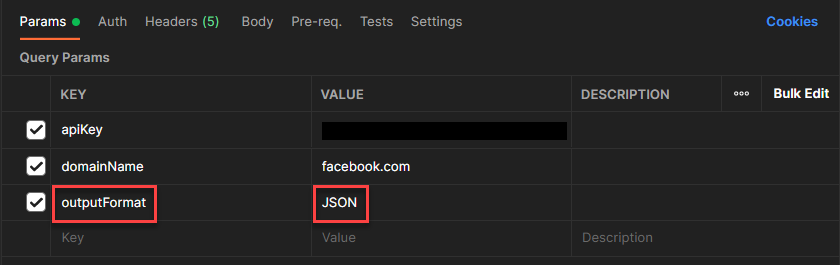
-
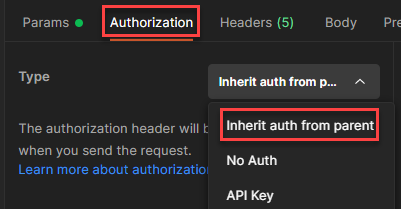
Navigate to the Authorization tab to add authorization tokens or credentials per the server’s requirements. For this use case, select Inherit auth from parent under the authorization type dropdown menu since the API key has already been entered in the previous step.
-
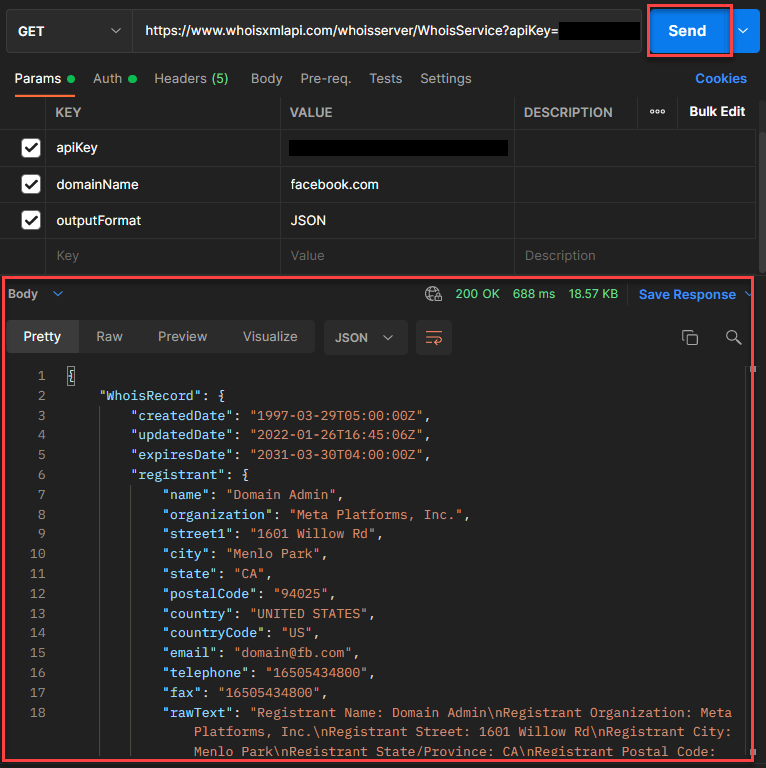
Click the blue Send button to execute the API request. The response data sent from the server will be visible in the response pane.
-
Success!
What just happened?
Postman has sent a GET request to the WHOIS API. The server processed the request and returned the data in the response pane. A lack of error messages in the response code indicates a successful test.